


If you have ever dreamed of putting together a machine tailored exactly to your gaming preferences, a custom gaming PC build is one of the most rewarding projects you can undertake. Unlike purchasing a pre-built system off a store shelf, building your own rig gives you complete control over every component, every specification, and every dollar you spend. Whether you are a first-time builder looking to dip your toes into the world of PC assembly or a seasoned enthusiast chasing the latest high refresh-rate gaming experience, this comprehensive custom gaming PC build guide will walk you through everything you need to know—from selecting the right parts to finishing your build with confidence and pride.
Why Build a Custom Gaming PC Instead of Buying Pre-Built?
The decision to build a gaming PC from scratch comes with a long list of advantages that simply cannot be replicated by off-the-shelf alternatives. When you assemble your own system, you choose every single part, ensuring that no compromises were made to cut costs or hit an arbitrary price point. Pre-built gaming PCs often sacrifice critical components like power supplies or storage drives to keep marketing prices low, which can lead to bottlenecks and frustrating performance limitations down the road.
Beyond performance, a custom gaming PC build gives you full visibility into the quality and longevity of your hardware. You know exactly which brand of RAM is installed, which motherboard chipset you are working with, and whether your cooling solution can handle sustained workloads. This transparency builds trust and gives you the confidence that your investment will last for years, not just months.
Essential Components for Your Custom Gaming PC Build
Every successful custom gaming PC starts with careful component selection. Each part plays a specific role, and understanding how they interact is the foundation of a balanced, high-performance system. Below is a detailed breakdown of the core components you will need.
CPU: The Brain of Your Rig

The central processing unit handles game logic, physics calculations, and background processes. For gaming in 2024 and beyond, both Intel and AMD offer excellent options depending on your budget and performance goals.
- Budget-friendly: AMD Ryzen 5 7600 or Intel Core i5-14400F
- Mid-range sweet spot: AMD Ryzen 7 7700X or Intel Core i5-14600KF
- High-end enthusiast: AMD Ryzen 9 7950X or Intel Core i9-14900K
When choosing a processor, pay attention to the motherboard socket compatibility. Intel uses LGA 1700 for its 14th generation and AMD uses AM5 for its Ryzen 7000 series. Picking the right motherboard alongside your CPU will save you headaches and ensure future upgradeability.
GPU: The Heart of Gaming Performance
The graphics processing unit is the single most important component for gaming performance. Your GPU determines frame rates, visual fidelity, and your ability to run modern titles at higher resolutions and ray tracing settings.
- 1080p gaming: NVIDIA GeForce RTX 4060 Ti or AMD Radeon RX 7700 XT
- 1440p gaming: NVIDIA GeForce RTX 4070 Super or AMD Radeon RX 7800 XT
- 4K gaming: NVIDIA GeForce RTX 4080 Super or AMD Radeon RX 7900 XTX
Always factor in your power supply wattage and case clearance when selecting a graphics card. High-end GPUs can be remarkably large and power-hungry, so double-check dimensions and PSU requirements before making a purchase.
Motherboard and RAM Selection

Your motherboard serves as the backbone connecting every component. Choose a board that supports your CPU socket, has enough PCIe slots for expansion, and includes the features you need—such as Wi-Fi, USB-C headers, or multiple M.2 NVMe slots.
For RAM, 16GB of DDR5 is the current sweet spot for modern gaming, though 32GB is becoming increasingly recommended for future-proofing and multitasking. Look for kits with speeds of 6000 MHz or higher for AMD systems to take full advantage of the Infinity Fabric clock synchronization.
Step-by-Step Custom Gaming PC Build Process
Assembling your PC is easier than most people expect, but it does require patience, attention to detail, and the right tools. Here is a structured approach that builders of every skill level can follow.
Phase 1: Preparation and Planning
- Gather your workspace with a clean, well-lit surface and an anti-static mat or wrist strap.
- Unbox and organize all components, including screws, cables, and manuals.
- Download and install the motherboard manual PDF and the CPU installation guide on your phone or tablet for quick reference.
- Ensure your workspace has enough room to lay out parts and move freely.
Phase 2: Assembly
- Install the CPU: Open the socket latch on the motherboard, align the golden triangle marker on the processor with the corresponding marker on the socket, and gently place the CPU in. Secure the retention arm.
- Apply thermal paste and mount the cooler: Place a pea-sized dot of thermal paste on the center of the CPU. Attach your CPU cooler according to its mounting instructions, ensuring even pressure.
- Install RAM: Open the DIMM clips, align the notch on the RAM stick with the slot, and press firmly until the clips snap shut. For dual-channel performance, install sticks in the correct slots as outlined in your motherboard manual.
- Mount the M.2 SSD: Locate the M.2 slot on the motherboard, insert the NVMe drive at a 30-degree angle, and press it down flat before securing the retention screw.
- Prepare the case: Install the I/O shield, then mount the PSU in the designated bay with the fan facing downward if your case has a bottom intake vent.
- Route and connect cables: Connect the 24-pin ATX motherboard power, the 8-pin CPU power, and GPU power cables. Manage cables through the case’s rear cutouts for clean airflow.
- Install the GPU: Remove the necessary PCIe slot covers, align the graphics card with the top PCIe x16 slot, and press firmly until the retention clip engages.
- Connect front panel headers: Using your motherboard manual, connect the power button, reset switch, HDD LED, and front audio/USB headers to the correct pins.
Once everything is connected, do a quick visual inspection. Check that no loose screws are resting on the motherboard, that all power cables are fully seated, and that your cooler fan is unobstructed. Plug in the power cable, flip the PSU switch, and press the power button. If your system POSTs and the motherboard logo appears, you have successfully completed your custom gaming PC build.
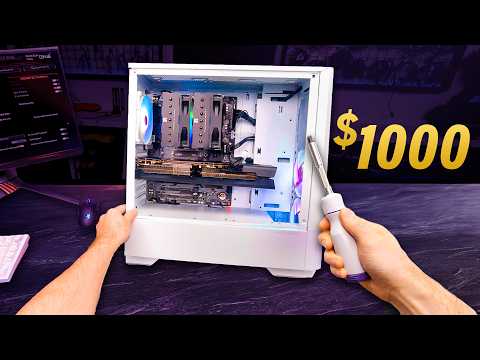
Budget vs Premium Custom Gaming PC Build Comparison
Different builders have different goals, and your budget will largely dictate which components you prioritize. Here is a helpful comparison of budget-oriented versus premium builds.
| Component | Budget Build (~$800) | Premium Build (~$2500) |
| CPU | AMD Ryzen 5 7600 | AMD Ryzen 9 7950X |
| GPU | RTX 4060 Ti | RTX 4080 Super |
| RAM | 16GB DDR5-5600 | 32GB DDR5-6000 |
| Storage | 1TB NVMe SSD | 2TB NVMe SSD + 4TB HDD |
| PSU | 550W 80+ Bronze | 850W 80+ Gold |
| Cooling | Stock CPU cooler | 280mm AIO liquid cooler |
| Case | Mid-tower ATX | Full-tower with mesh panels |
The budget build is perfect for entry-level 1080p gaming and esports titles, while the premium build is designed for 4K ultra gaming, streaming, and content creation workloads. Neither option is objectively better—they simply serve different use cases and financial constraints.
Common Mistakes to Avoid When Building a Gaming PC
Even experienced builders occasionally make mistakes, but knowing what to watch for can save you hours of troubleshooting and potentially hundreds of dollars in damaged components.
- Skipping the motherboard manual: This is the number one cause of assembly errors. Every motherboard has different slot layouts, header positions, and BIOS requirements.
- Forgetting to install the I/O shield: It is much harder to add this after the motherboard is already seated in the case.
- Mismatching your PSU with your GPU: A low-wattage power supply will either fail to power your system or strain itself under heavy load.
- Neglecting airflow planning: A beautiful build with terrible cable management can suffer from thermal throttling and reduced component lifespan.
- Overspending on unnecessary parts: Not every build needs the most expensive RAM or a liquid cooling solution. Focus your budget on the GPU and CPU first.
Frequently Asked Questions
What is the easiest way for a beginner to start a custom gaming PC build?
Begin by purchasing components that are all compatible with each other. Use online PC building tools like PCPartPicker to check compatibility before ordering. Start with simpler steps like installing the CPU and RAM outside the case before transferring the motherboard into the chassis for final assembly.
How long does it take to build a custom gaming PC?
A first-time builder can expect the process to take between three to five hours, depending on experience and cable management preferences. Experienced builders can complete a build in under two hours with minimal issues.
Do I need an expensive liquid cooling system for a gaming PC?
Not necessarily. Many modern CPUs come with capable stock coolers that handle gaming loads easily. Liquid cooling becomes worthwhile if you are pushing high-end processors under sustained heavy workloads or want the aesthetics and quieter operation of a custom loop.
Can I upgrade my custom gaming PC later?
Absolutely. One of the biggest advantages of a custom build is modularity. You can swap out the GPU, add more RAM, or upgrade storage without replacing the entire system. Just ensure your motherboard and case support the newer components.
What is the most important component in a custom gaming PC build?
The graphics card has the single largest impact on gaming frame rates and visual quality. However, a balanced system requires all components to work together—choosing an overpowered GPU with a weak CPU or insufficient RAM will create bottlenecks that limit your overall experience.
How do I know if my power supply is sufficient for my build?
Use an online PSU calculator such as the one from OuterVision or Seasonic. Input all of your components and the calculator will estimate your total system wattage. Always choose a PSU with at least 20-30% headroom above your estimated draw to ensure stable operation and future upgrade room.
Conclusion
Building a custom gaming PC is more than just assembling hardware—it is a creative process that results in a machine perfectly aligned with your gaming style, aesthetic preferences, and budget. From selecting the right CPU and GPU combo to fine-tuning cable management and airflow, every decision contributes to the final product’s performance and longevity. Use this custom gaming PC build guide as your roadmap, take your time during assembly, and enjoy the satisfaction of powering on a system you built with your own hands. The knowledge and confidence you gain from this experience will serve you for every future upgrade and build to come.